
RAL Color Analyzer
Upload an image, select a colour and view the tool’s closest RAL reference with a code, name and RGB values.
Page reachable · Last checked: 2026-11-15 · Hands-on check
About RAL Color Analyzer
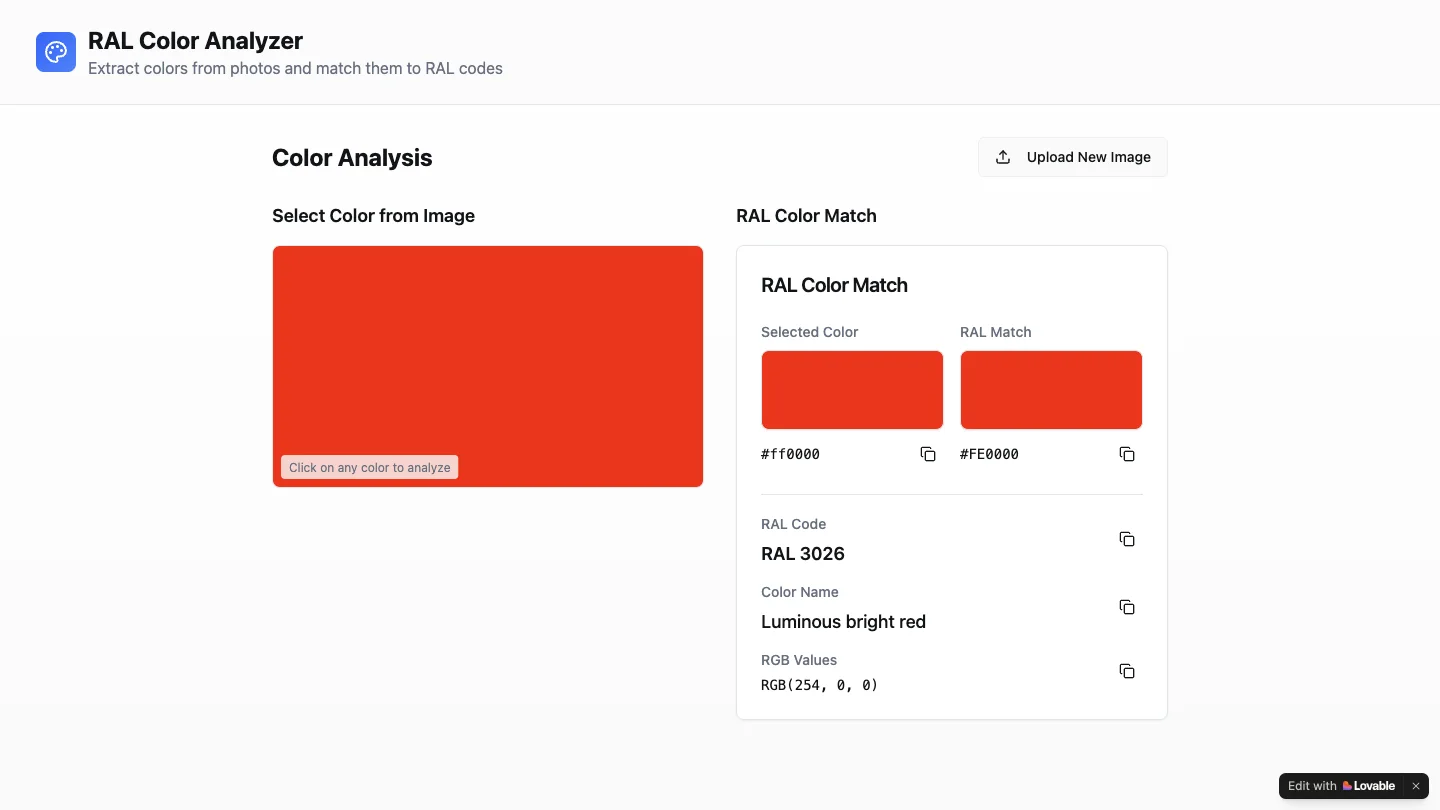
RAL Color Analyzer is a focused browser tool for finding a RAL colour reference from an image. Upload a photograph or other supported image, click the colour you want to inspect, and compare the selected pixel with the tool’s proposed RAL match. The result brings the colour code, name and numeric values together. The upload interface lists JPG, PNG and WebP. After an image is loaded, a clickable canvas appears next to the RAL match panel. The panel shows separate swatches for the selected colour and the suggested reference, along with HEX and RGB values and copy controls. An Upload New Image button starts another comparison. We tested the workflow with a synthetic solid-red PNG. Selecting a pixel returned #ff0000 as the input and RAL 3026, Luminous bright red, as the tool’s proposed match, with reference values #FE0000 and RGB 254, 0, 0. This confirms that the upload-and-select workflow returned a result; it does not independently validate the underlying colour library or matching algorithm. Use the result as a visual starting point when discussing paint, products or design references. A photograph depends on lighting, camera processing, compression and display settings. Confirm a physical colour with an appropriate physical reference before specifying a finish or ordering material. Copy controls were inspected, but mobile operation and the accuracy of other matches were not tested.
Why we list it
Included for a working upload-and-pixel-selection flow. A solid-red test returned a RAL result; matching accuracy and physical colour equivalence are not certified.
Who it’s for
Designers, makers and people discussing paint or finish references who need an approximate photo-to-RAL starting point.
Availability & access
- Account
- No account required
- Download
- No download required
- Browser use
- Works in a browser
The tested public workflow ran in a desktop browser without creating an account, installing software, or making a payment. Pricing beyond this workflow and mobile support were not established.
What we found
The tool places the sampled pixel and its proposed RAL reference side by side instead of returning only a code.
On November 15, 2026, uploaded a synthetic 640 by 360 solid-red PNG and selected a pixel. The tool returned input #ff0000 and a proposed RAL 3026 Luminous bright red match, #FE0000 / RGB 254, 0, 0. This validates the interaction, not reference-library accuracy. No account, installation or payment was needed. Other formats, copy controls and mobile use were not tested.
How to use RAL Color Analyzer
- 1Upload an image containing the colour you want to compare. The interface lists JPG, PNG and WebP.
- 2Click the relevant part of the image to display the proposed RAL reference and numeric values.
- 3Use the result as a starting reference, then confirm physical colour requirements with an appropriate physical sample.
Key features
- JPG, PNG and WebP upload options shown in the public interface.
- Clickable image canvas for selecting a colour.
- Side-by-side selected-colour and proposed RAL-reference swatches.
- RAL code, colour name, HEX and RGB values in the result panel.
- Copy controls and an option to upload another image.
Pros & cons
Pros
- +The selected colour and proposed reference can be compared directly.
- +The tested upload and match did not require an account or installation.
Cons
- −The matching algorithm and RAL library were not independently validated.
- −Camera lighting and display differences limit what a photo-based colour reference can establish.
FAQ
How do I find a RAL colour from a photo?
Upload the photo, click the colour you want to compare, and read the proposed code, name and numeric values. Confirm important physical specifications with an appropriate physical reference.
What happened in the red-image test?
The selected input was #ff0000. The tool proposed RAL 3026, Luminous bright red, with #FE0000 and RGB 254, 0, 0. We verified that a result appeared, not that the matching library is authoritative.
Which image formats are listed?
The public interface lists JPG, PNG and WebP. Our working test used a PNG; JPG and WebP uploads were not tested.
Does it need an account or installation?
The tested PNG upload and colour selection worked in a desktop browser without an account, installation or payment. The site’s broader pricing and data-handling terms were not established.
Similar apps
Separate products in the same categories, selected by SoFast.
An AI-assisted presentation builder for generating slides, scripts, narration, and a slideshow experience from a topic.
Also in Content Creation
Create synchronized lyrics by loading audio or video, entering text, assigning timestamps and exporting an LRC, TXT or SRT file.
Also in Content Creation

Restyle, restore, colorize, or rework existing photos with AI presets and prompts that aim to preserve recognizable faces and product details.
Also in Content Creation

Remove an image background in your browser, compare the cutout and download a transparent PNG; preview colours do not flatten the main export.
Also in Creative Media
Sources
- pixel-to-ral-magic.lovable.app · Observed 2026-11-15
SoFast is an independent directory. Product information is based on publicly available information and may change. Each product is operated by its respective owner. Visit the original website for the latest details.